
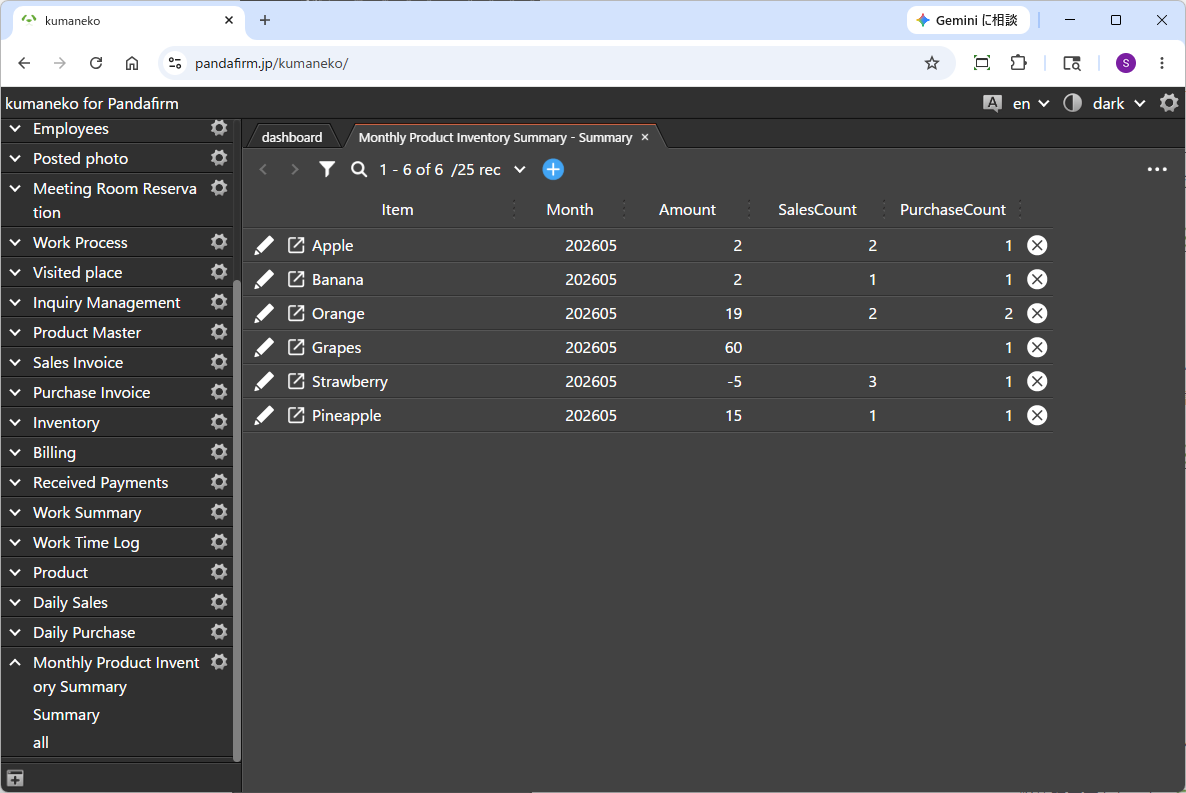
This is a plugin that aggregates records from multiple apps and registers the results.
It can be used to create monthly inventory summaries based on stock in/out data, as well as labor management data that lists working days, total working hours, absentee counts, and more from daily report data. In addition to aggregating numeric fields such as inventory quantities and total working hours, it also supports counting records and table rows that match specified conditions, such as working days and absentee counts.
 Preparation for using Boost! Summary Fusion (Version upgrade of kumaneko)
To use this plugin, you need kumaneko version 2.0.3 or higher. Please check your current version and update it if necessary.
Setting up the "Boost! Summary Fusion"
The "Boost! Plugin" is configured and downloaded via the "Boost! Console", so if you haven't set up your "Boost! Console" yet, please register your user information first.
-
Placement and Verification of Fields for Aggregated Data
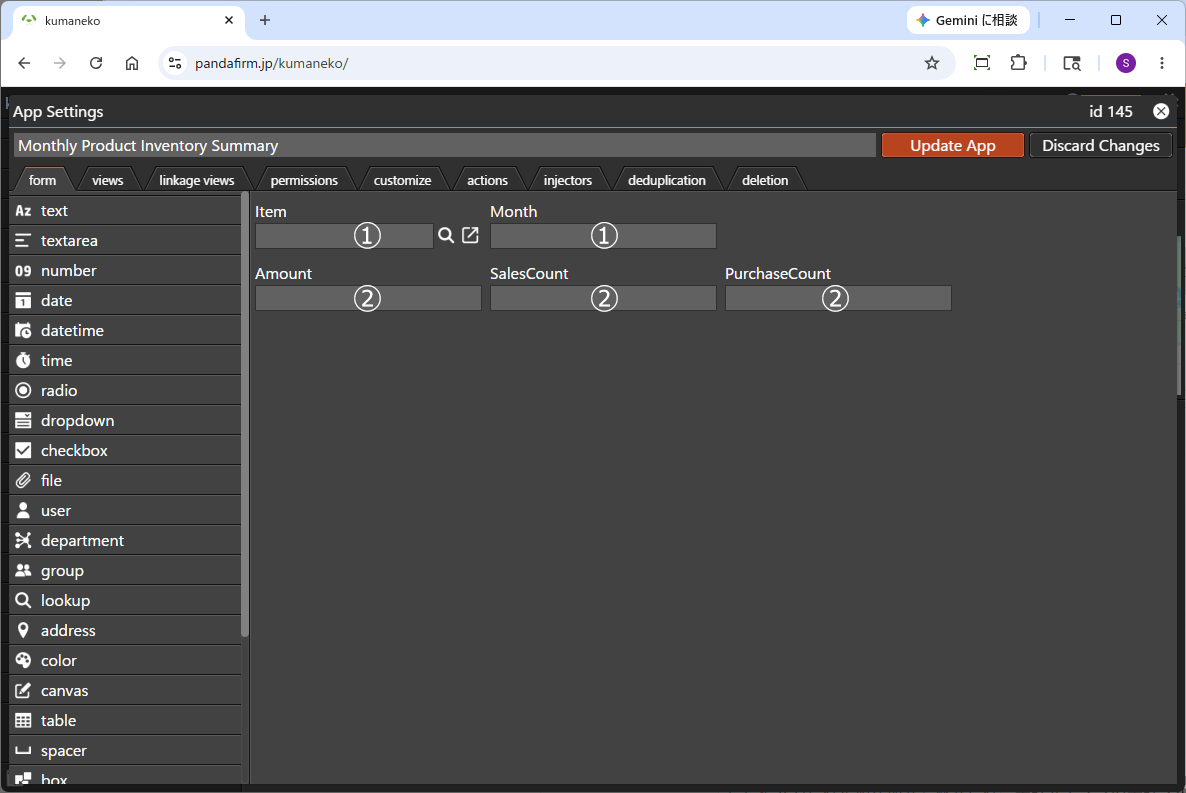
First, the app where this plugin is installed requires several fields to store the aggregated data.
1. Identification Field This is the key field used to determine the unit of aggregation. If no record exists that matches the values of the fields specified here, a new record will be added.
However, if the identifier fields include any non-editable fields, new records will not be added, and only existing records will be updated.2. Aggregation Field This field stores the aggregated values. 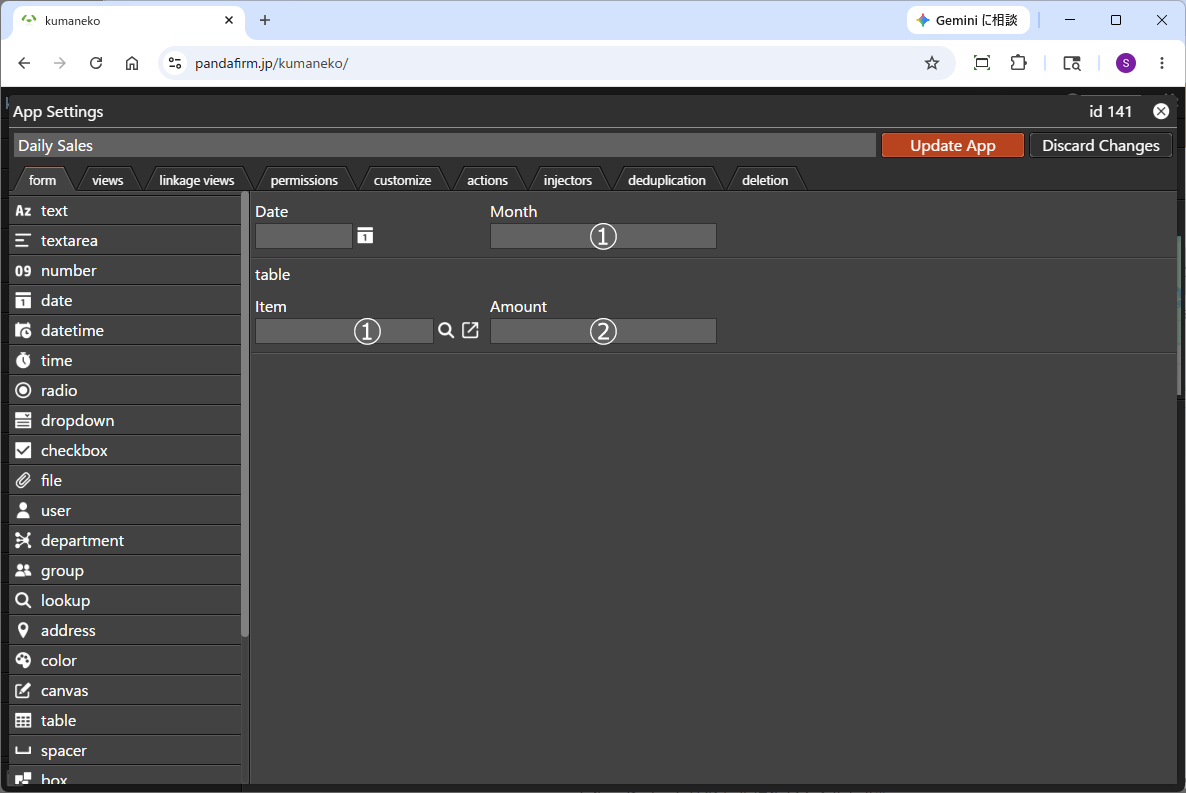
Next, we will explain the fields that need to be placed in the "Source App" for aggregation.
1. Identifier Field A key field used to link with the identifier field of the target app for aggregation.
It must hold the same value as the identifier field of the target app.2. Aggregation Field A field that stores values such as amounts or quantities to be aggregated.
The values entered here will be added or subtracted and reflected in the aggregation field of the target app.As an example of specifying multiple identification fields, there is a case where monthly stock in/out quantities are managed for each product.
In such a case, monthly stock management can be performed by specifying the “Product lookup field” + “number field containing Year/Month” as the identification fields. -
Creating a List View
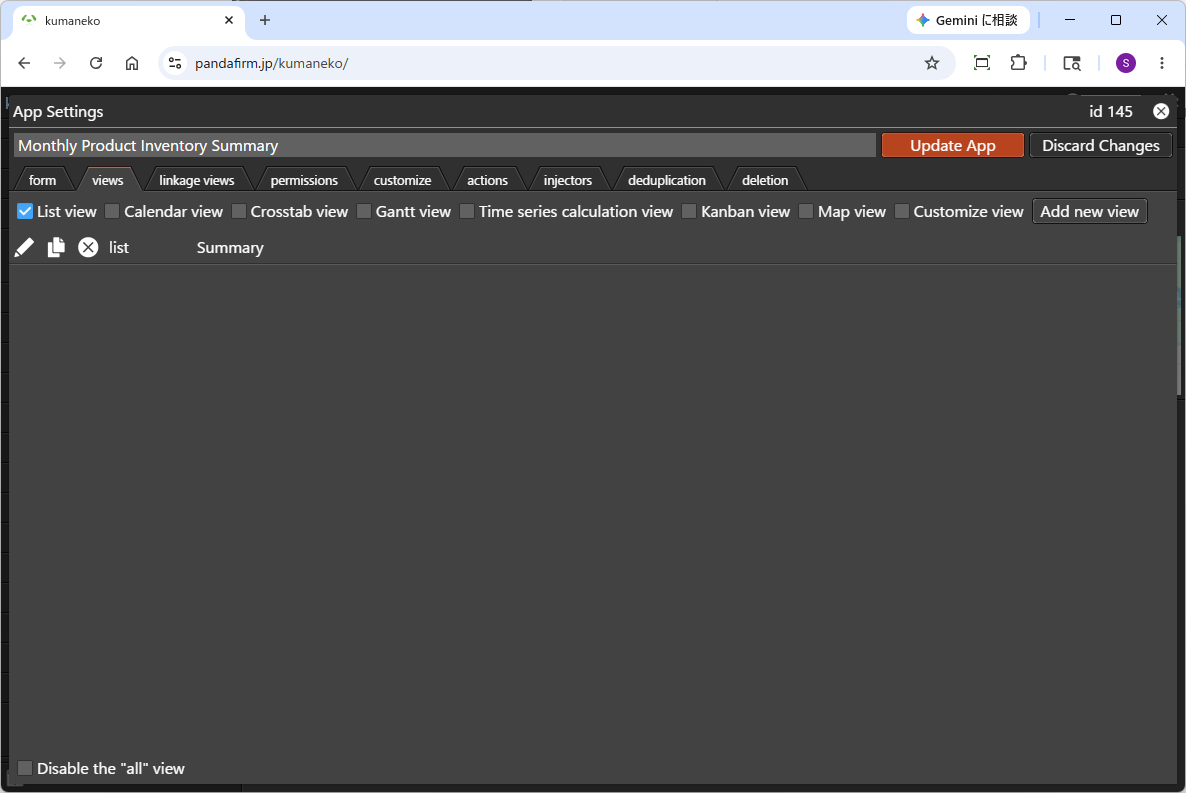
A read-only list view needs to be created in advance for this plugin, so if you want to use a view other than the "all" view, please create a new one.
-
Configuring the "Boost! Summary Fusion"
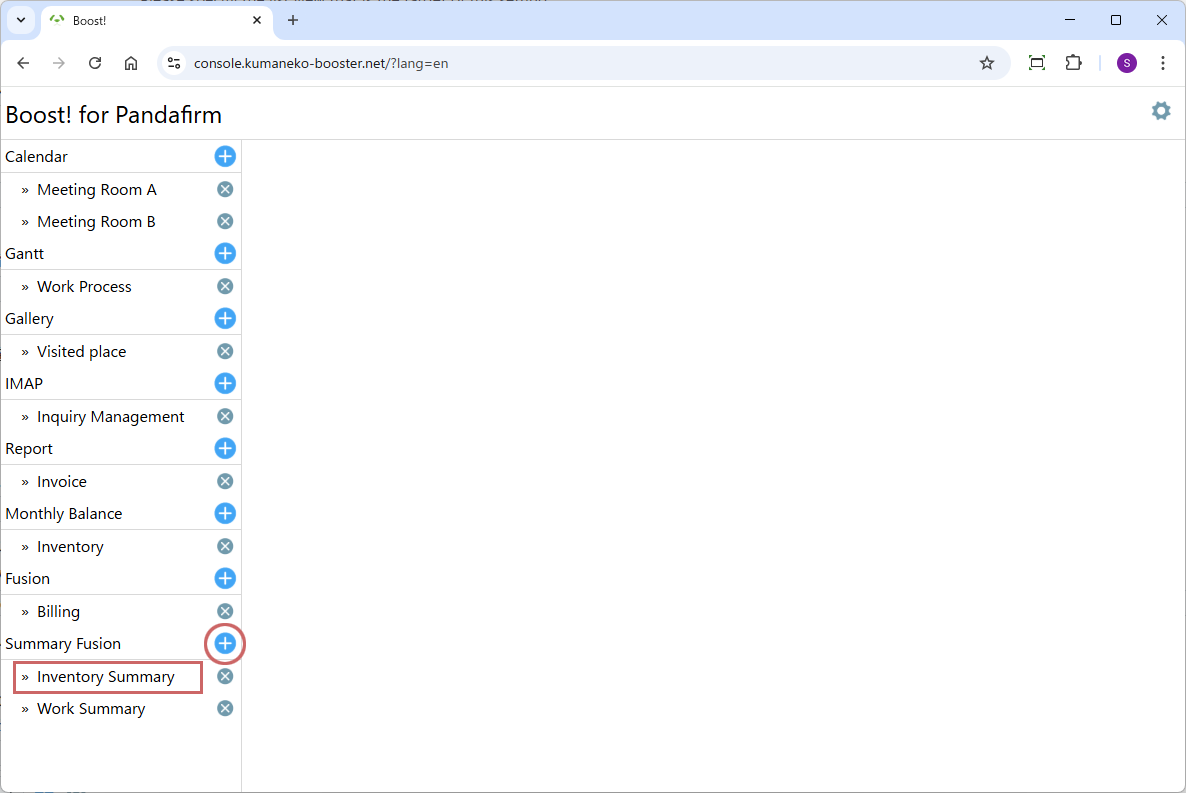
To add a new setting, click the add button on the right (circle in red), and to edit an existing setting, click the setting name (square in red).
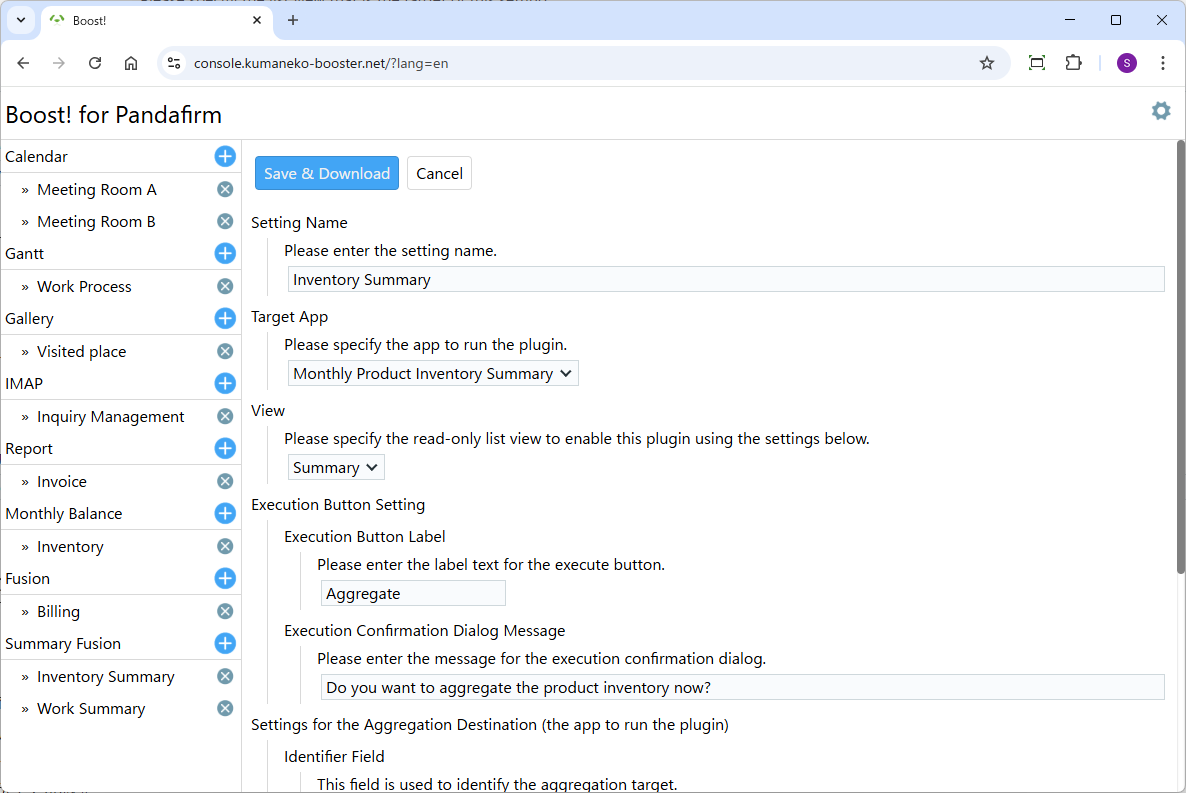
Once the plugin configuration screen appears, specify the setting items.
Setting Name:
Please enter a name that will appear on the list on the left side of the screen and will also be the name of the program to download.
Target App:
Please specify the app to run the plugin.
View:
Please specify the list view that is the target of this setting.
Execution Button Label:
Please enter the label text for the execute button.
Execution Confirmation Dialog Message:
Please enter the message for the execution confirmation dialog.
Identifier Field:
Please specify the field used to identify the aggregation target.
Source App:
Please specify the app to be used as the aggregation target.
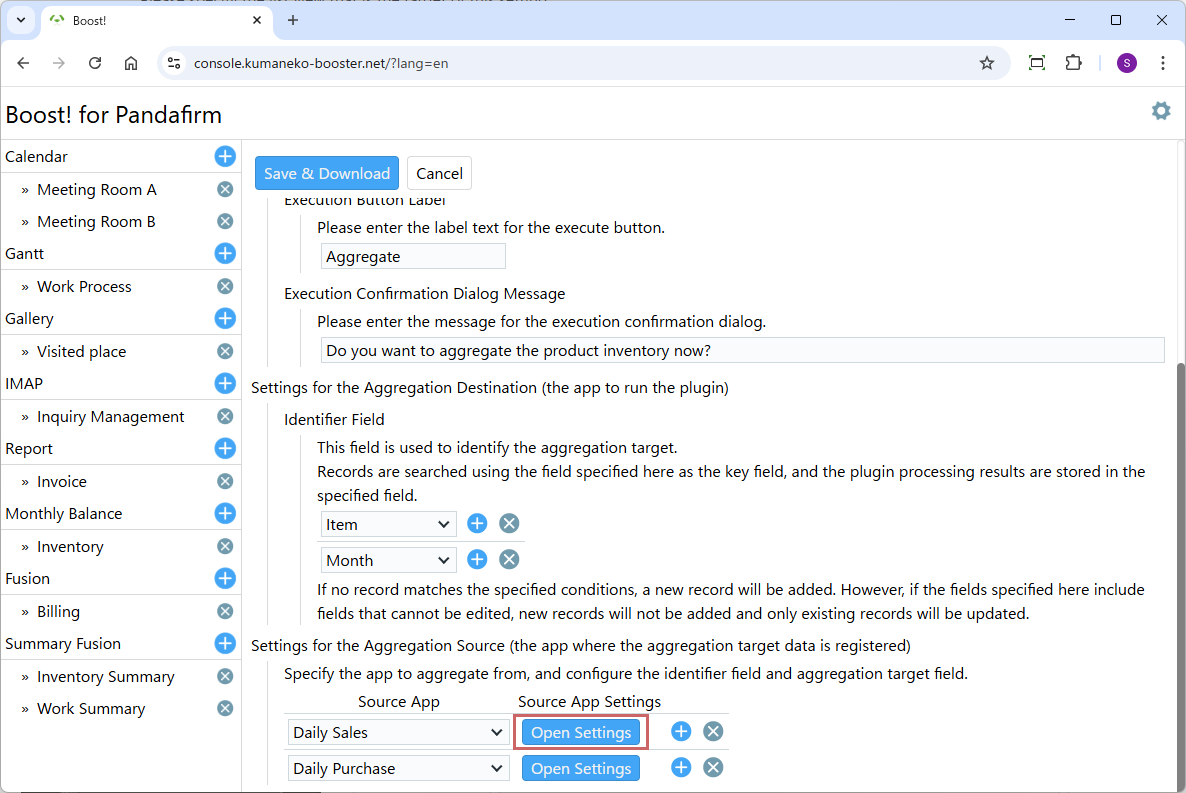
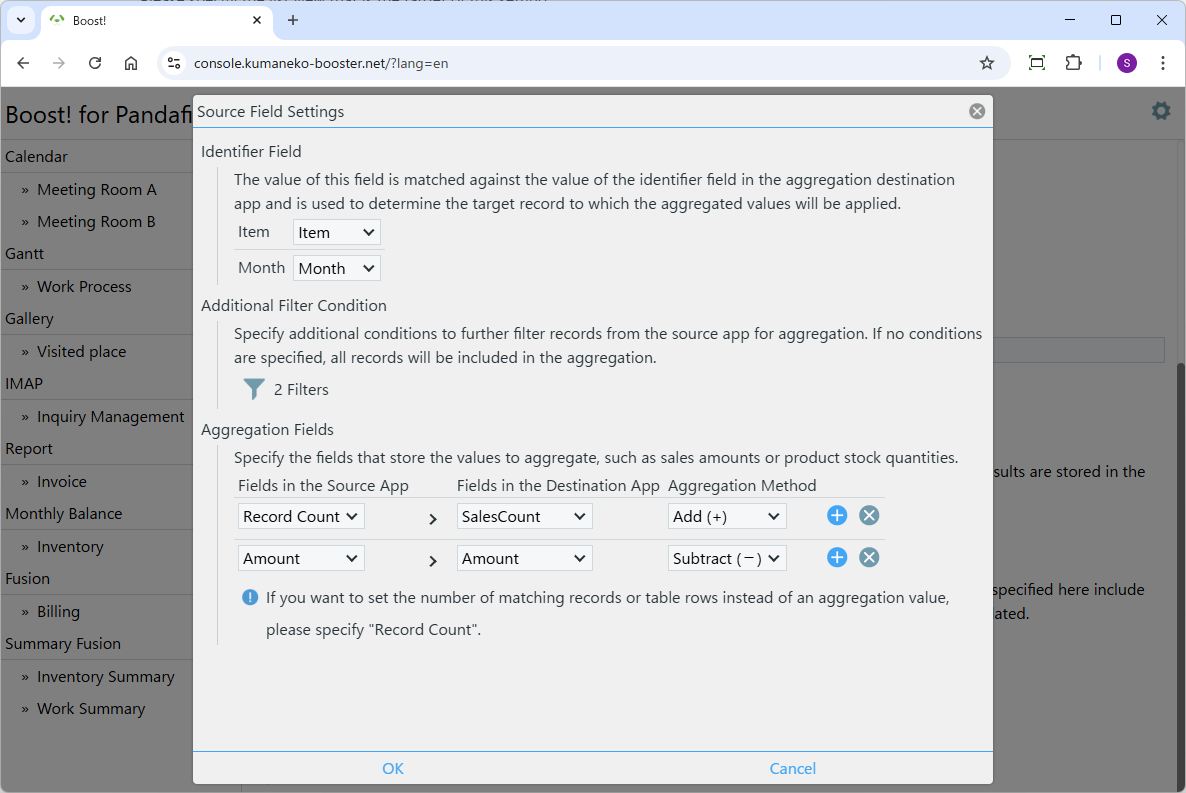
The settings for the source app are configured from the popup screen that appears when you click the "Open Settings" button.
Identifier Field:
Please specify the field to be matched with the identifier field of the aggregation target app.
Additional Filter Condition:
Optionally, please specify additional conditions to narrow down records from the source app.
Aggregation Fields:
Please specify the fields that store the values to aggregate, such as sales amounts or product stock quantities.
If you want to set the number of matching records or table rows instead of an aggregation value, please specify "Record Count".
For information on downloading the program or installing it to kumaneko, please check the page for setting up the "Boost! Console".
"Boost! Summary Fusion" Operation Method
-
How to Operate
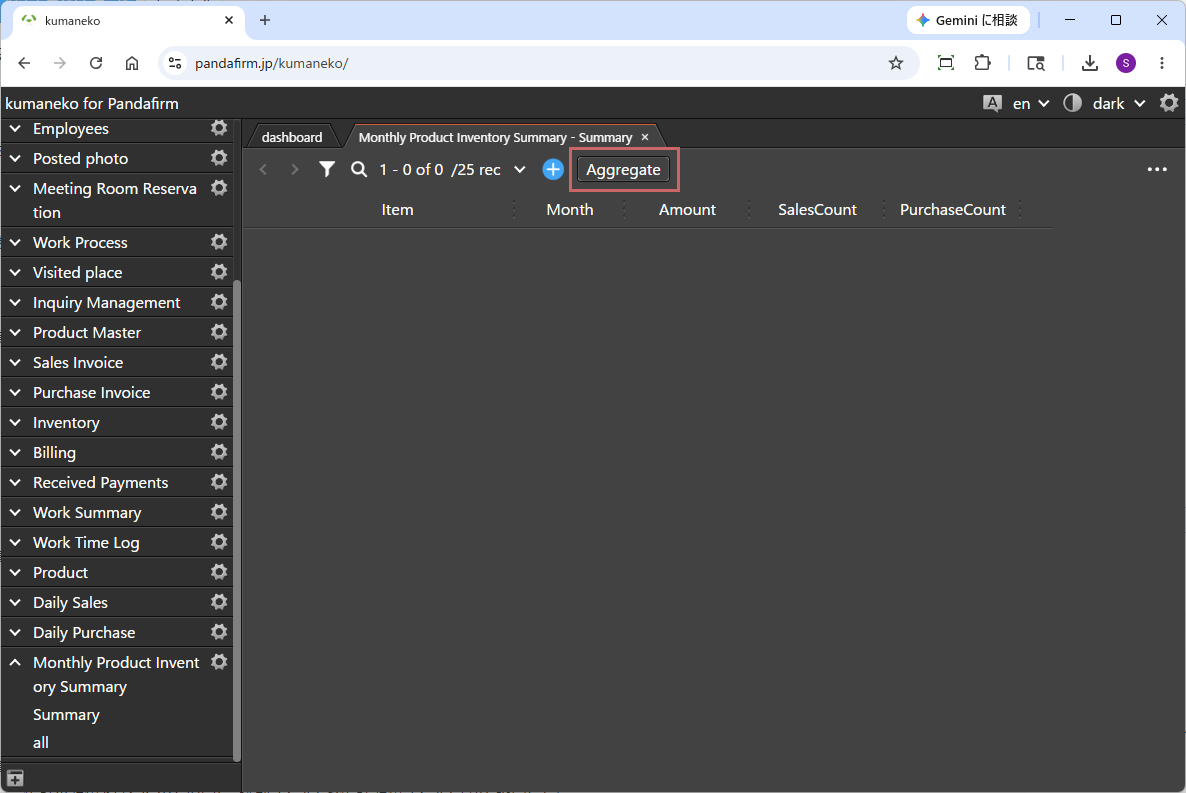
When you display the list view specified in the settings screen, an execution button will appear.
-
Operation
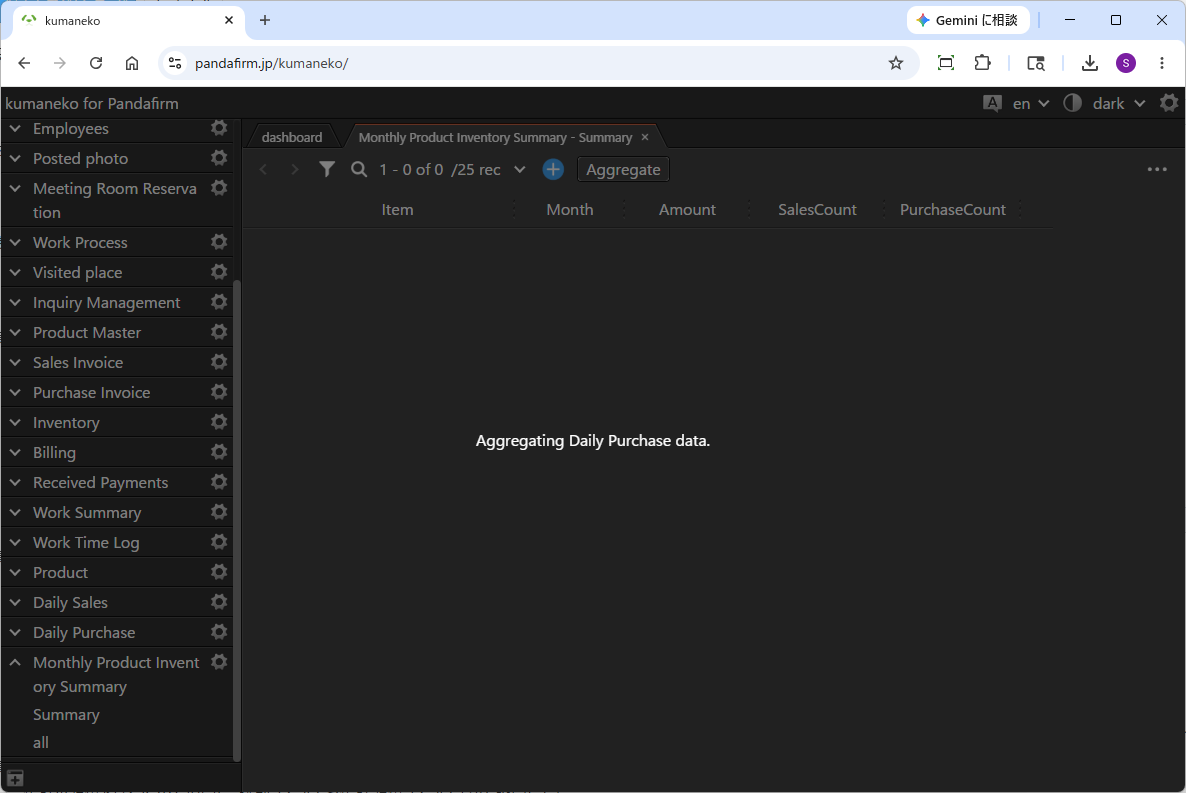
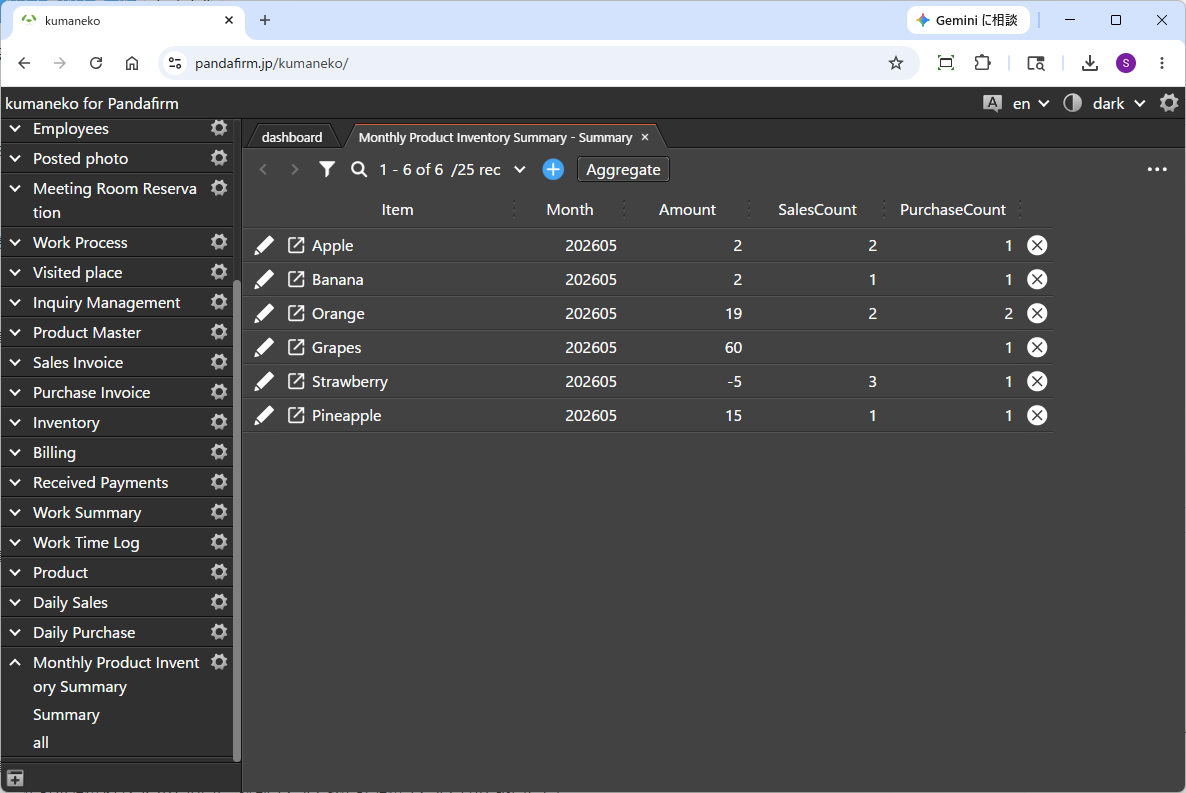
When you click the displayed button, the aggregation will be executed.